Clearbay app icon

Don't delete it. Offload it.

Clearbay shows what fills your Mac, then moves big files and caches to your external drive or cloud storage with a verified copy and one-click restore. Or sends them to the Trash. You decide, item by item.

Coming soon to the Mac App Store · macOS 14 Sonoma or later · One-time price, no subscription

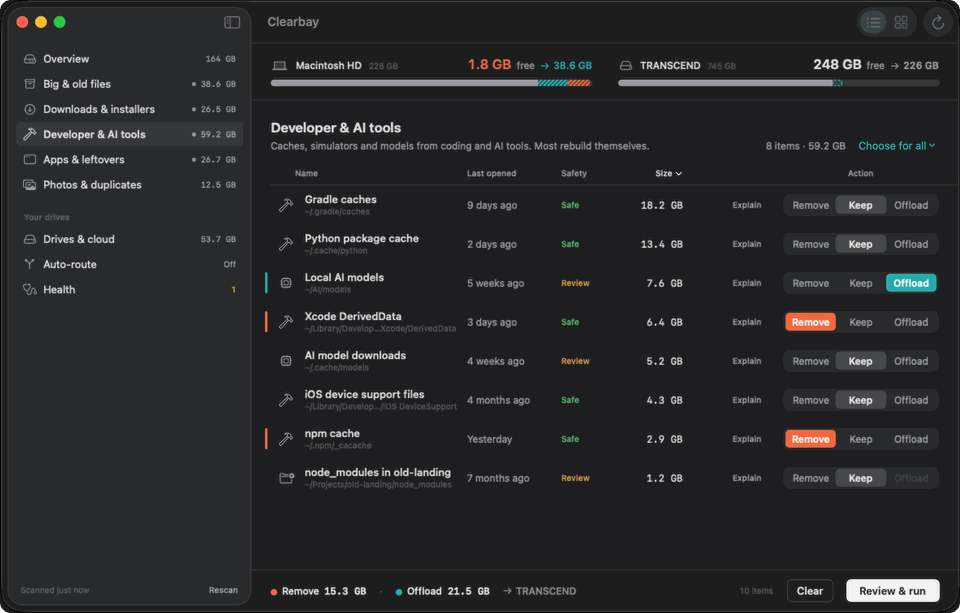
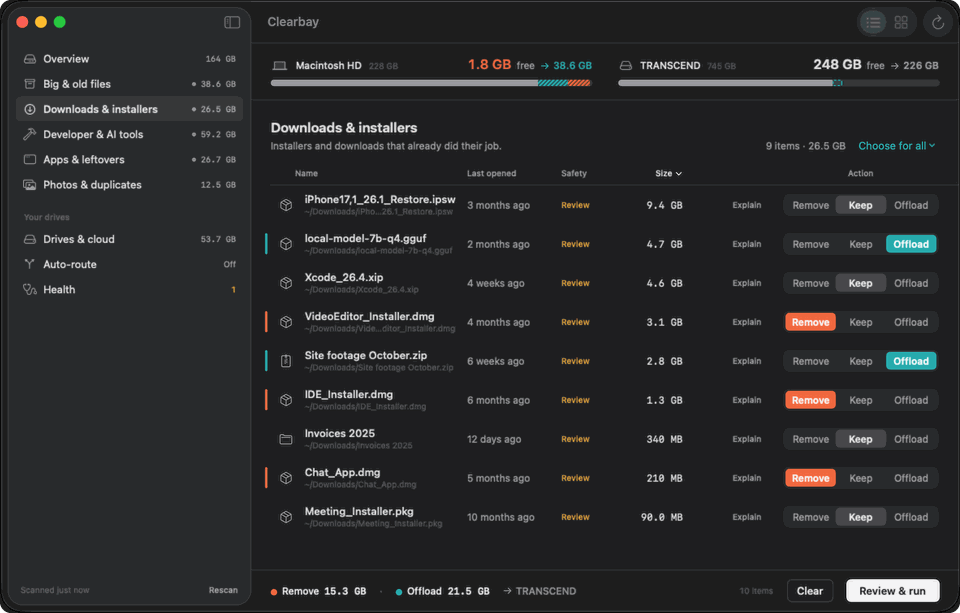
Clearbay window showing Downloads & installers. Each row has a Remove, Keep or Offload choice; the bottom bar reads Remove 15.3 GB, Offload 21.5 GB to TRANSCEND, with a Review & run button.
How it works

One choice for every item: Remove, Keep or Offload.

Most cleaners can only delete. Clearbay lets you keep everything and still get the space back.

  • RemoveGoes to the Trash, so you can change your mind. Caches that rebuild themselves are labelled Safe.
  • KeepThe default for every item. Nothing happens to it.
  • OffloadCopied to your drive or cloud, checked (file count and total size), and only then removed from your Mac. Restore with one click.

Scan, sort, then review the whole plan on one screen. Nothing runs until you click Run.

Illustration with example sizes. Your numbers will differ.

Features

Everything you need to get space back, nothing you have to trust blindly.

Find what fills your disk

Capacity bars for your Mac and your drive, the top quick wins, and six plain-language places: Big & old files, Downloads & installers, Developer & AI tools, Apps & leftovers, Photos & duplicates.

Switch any list to a space map: a flat treemap you can click to zoom. With Pro, duplicates are matched by content, not just by name, and similar photo series are grouped.
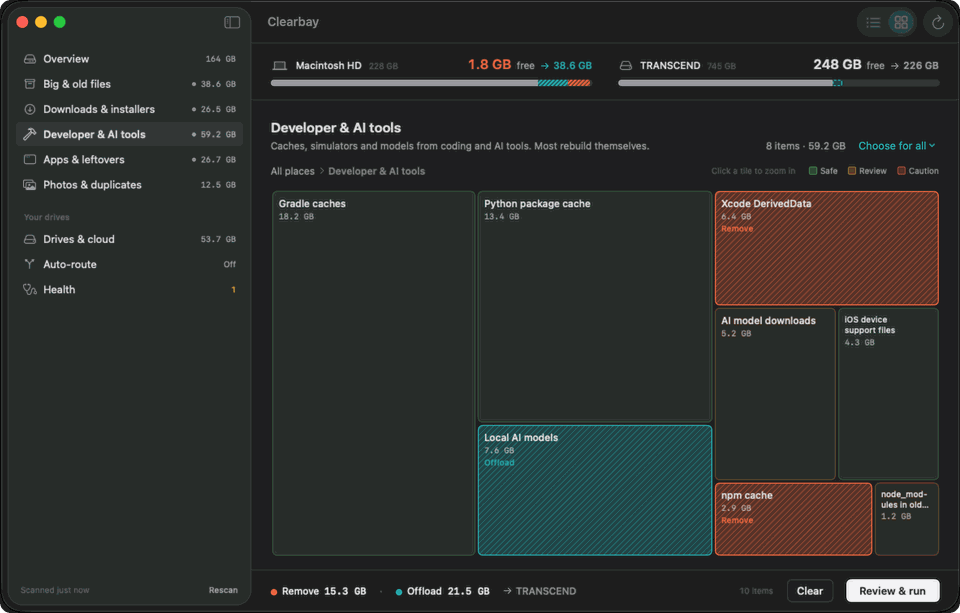
Space map of Developer & AI tools: tiles for Gradle caches, uv cache, Ollama models, Xcode DerivedData and more, coloured by safety.

Remove or offload in one plan

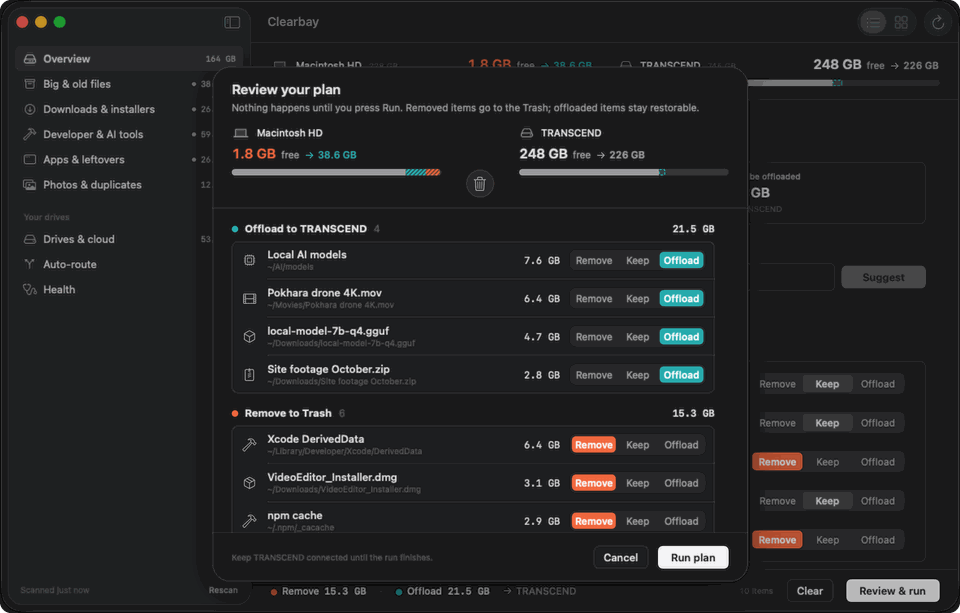
Pick an action for each item anywhere in the app. The review sheet lists everything grouped by action with totals, for example Remove 15.3 GB · Offload 21.5 GB → TRANSCEND.

Click Run and watch both capacity bars update. Every run is journaled, so you can undo it.

Review your plan sheet: items grouped under Offload to TRANSCEND and Remove to Trash, with Cancel and Run plan buttons.

Drives, S3 buckets and cloud folders

Offload to any external drive. With Pro, also to S3-compatible storage with your own keys:

  • Cloudflare R2
  • Amazon S3
  • Backblaze B2
  • Wasabi
  • MEGA S4
  • MinIO / custom

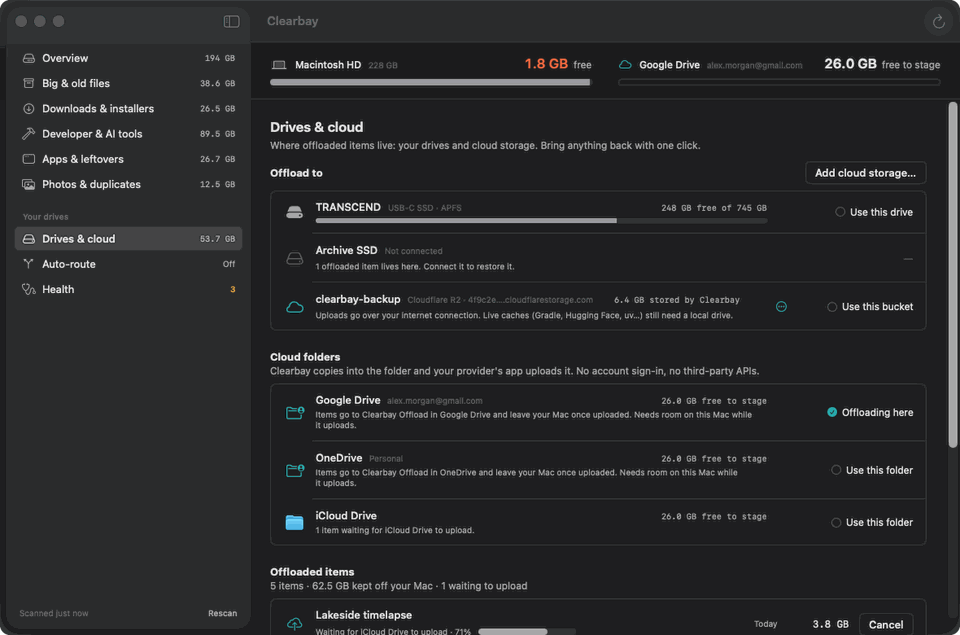
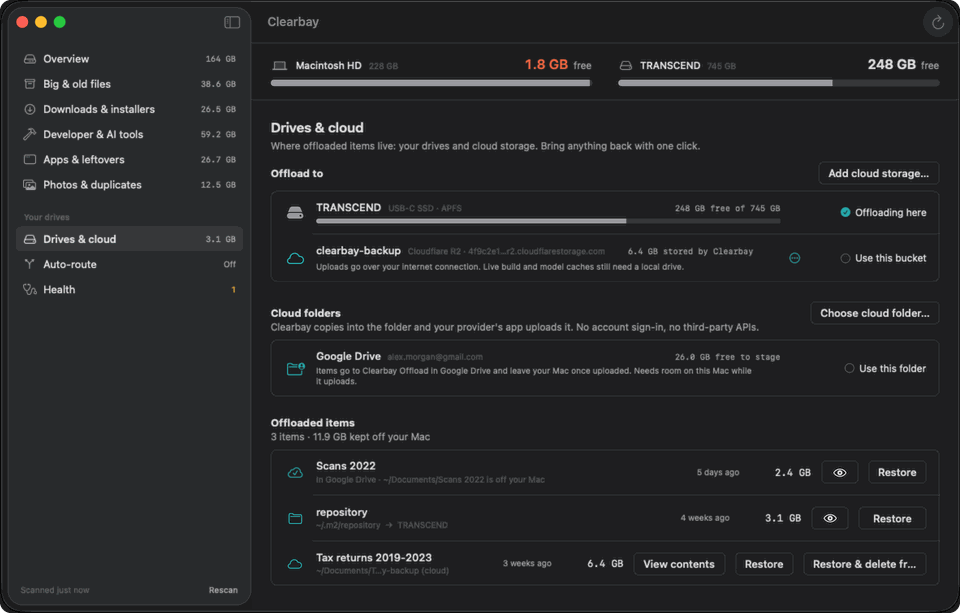
Or use a cloud folder you already sync: Google Drive, OneDrive, Dropbox, Box or iCloud Drive. Clearbay copies into the folder, waits until the provider's own app reports the upload is done, and only then frees the space. No third-party logins.

Live caches that tools read every day (Gradle, Hugging Face, uv, Xcode DerivedData) need a local drive, not the cloud. Your keys stay in the Mac's Keychain.

Drives & cloud screen listing an external drive, an S3 bucket and cloud folders for Google Drive, OneDrive and iCloud Drive.

Auto-route AirDrop and Downloads Pro

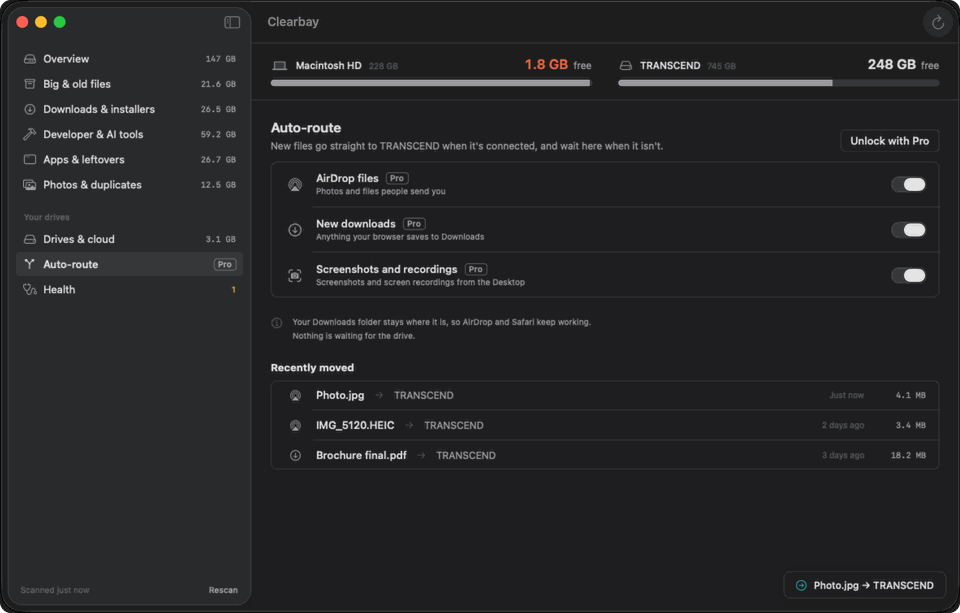
Send new AirDrop files, downloads and screenshots straight to your drive while it is connected. When it is unplugged, files stay where they are and move the next time you connect it.

A small notice tells you when something moved. Your Downloads folder stays a normal folder, so AirDrop and Safari keep working.

Auto-route screen with switches for AirDrop files, new downloads and screenshots, and a list of recently moved files.

For developers Pro

Clearbay knows the big folders that tools rebuild on their own, and labels each one Safe, Review or Caution:

  • Xcode DerivedData & Archives
  • Gradle
  • npm · pnpm · yarn
  • uv · pip
  • CocoaPods
  • Flutter pub
  • Hugging Face
  • Ollama
  • LM Studio

Project build folders are only suggested when the project hasn't been touched for 7 days, and .git folders are never touched.

The Direct edition also points the tools at the offloaded copy (for example GRADLE_USER_HOME, HF_HOME, OLLAMA_MODELS) so builds keep working from the drive.

Developer & AI tools list: Gradle caches, Docker Desktop data, uv cache, Ollama models, Xcode DerivedData, Hugging Face cache and npm cache with sizes and safety labels.

Explain with AI, only if you want it

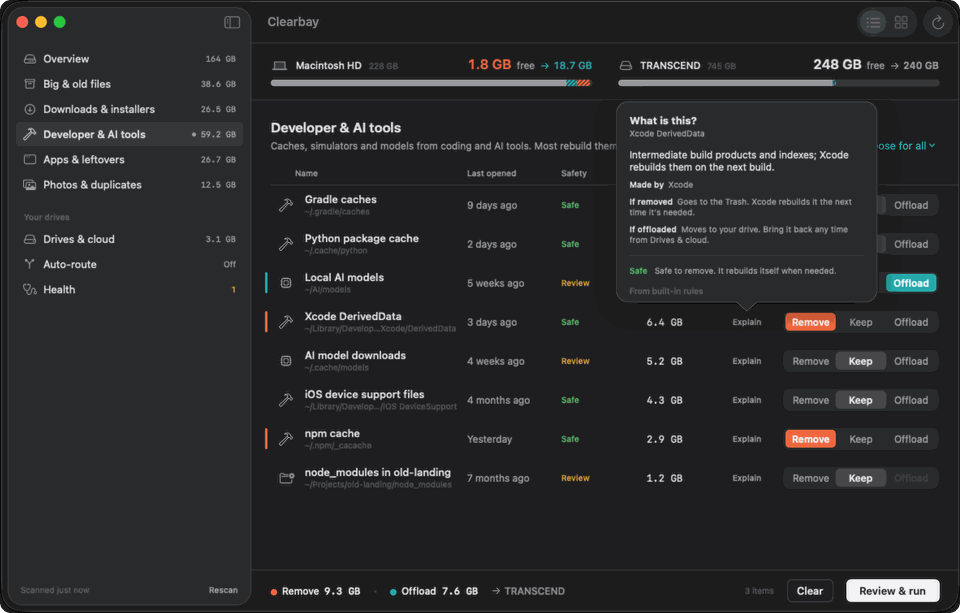
Click Explain on any row to see what it is, which app made it, and what happens if you remove or offload it. Or type a goal like “free 20 GB, keep my projects” and Clearbay suggests a plan from items its rules allow Pro. You still review every choice.

  • Opt-in. Clearbay asks before the first AI call. Say no and it explains from its built-in rules.
  • Paths, never file contents. It sends the item's path with your user name removed, its size and dates, and up to 15 names of items inside.
  • Rules decide what is safe. AI only explains, and every answer is marked “Explained by AI · may be wrong”.

Exactly what is sent

An Explain popover titled What is this? for Xcode DerivedData, describing what it is, which app made it and what happens if removed or offloaded.

Quick Look before you decide

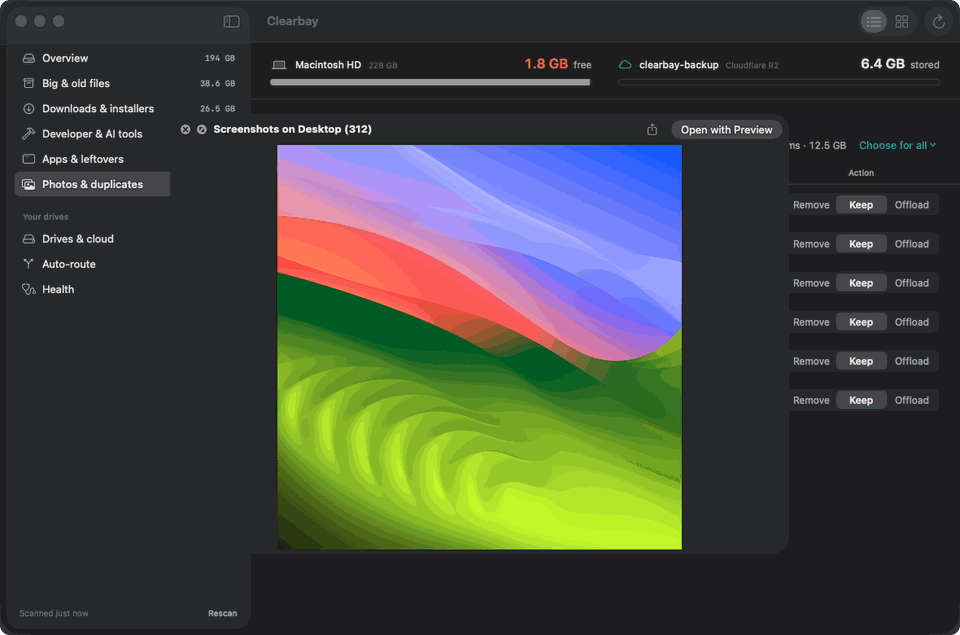
Press Space on any file to preview it with Quick Look. Folders get a Peek list of their 30 biggest items, so you know what's inside without opening Finder.

Previews happen on your Mac only and are never sent anywhere.

A Quick Look preview of an image opened from the Screenshots list inside Clearbay.

Storage health and a low-space alert

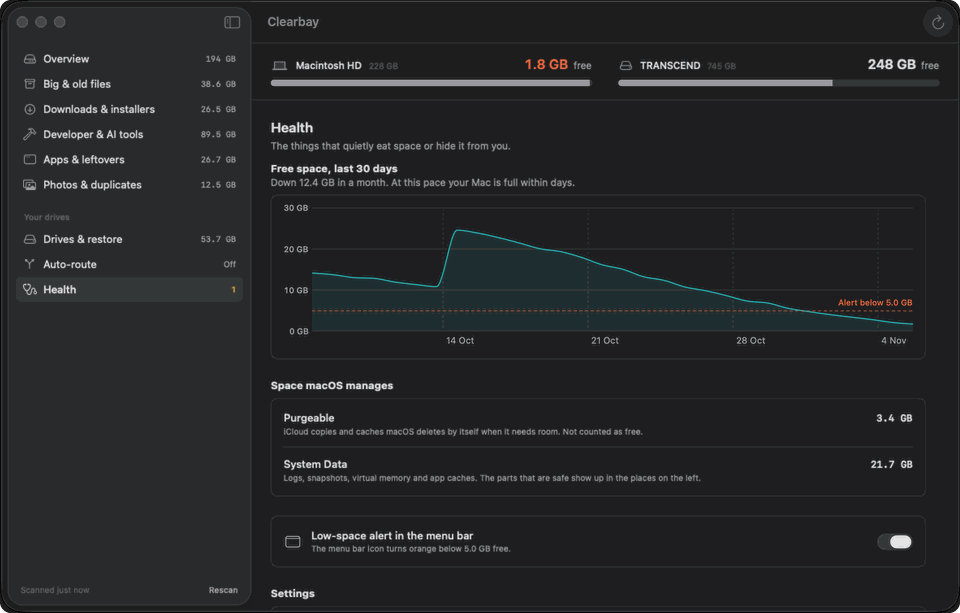
A daily free-space history shows how fast your disk is filling. Clearbay explains “purgeable” space and “System Data” in plain words.

Turn on the menu-bar alert Pro and the icon turns orange when free space drops below your limit (5 GB by default).

Health screen with a 30-day free-space chart, purgeable space and System Data explained, and a low-space alert switch.
Safety

Nothing moves without your OK.

  • Verified copies. An offload copies the item, checks the file count and total size on the destination, and only then frees the space. If any step fails, the original stays where it was.
  • Trash first. Remove moves items to the Trash, so you can change your mind until you empty it.
  • One-click restore. Everything you offloaded is listed in Drives & restore. Bring it back with one click, or undo the last run.
  • You review every run. Keep is the default. Nothing happens until you look at the plan and click Run.
  • Rules, not guesses. Built-in rules set the Safe, Review and Caution labels. System folders, Keychains, Mail, Messages, the Photos library and .git folders are off-limits.
Drives & restore screen listing offloaded items, each with a Restore button, plus Undo last run.
Editions

Two editions, same app.

The App Store edition comes first. A Direct edition with deeper access follows on this website.

App Store edition At launch

Sandboxed, reviewed by Apple.

  • Works in the folders you choose, plus Downloads
  • Remove, Keep or Offload with verified copies and restore
  • Space map, big & old files, installers, duplicates
  • Developer and AI-tool caches in folders you grant
  • Drives, S3-compatible storage and cloud folders
  • Auto-route, AI explain and plan
  • Pro is a one-time in-app purchase

Clearbay Direct After launch

Notarized download from this website.

  • Everything in the App Store edition
  • Full Disk Access for the full picture of your Mac
  • Points Gradle, Hugging Face, uv, npm, Ollama and Xcode at offloaded caches so tools keep working
  • Simulator and runtime cleanup
  • App uninstaller with leftovers, login items, local snapshots
  • Bought Pro on the App Store? Direct is free for you.
Pricing

Pay once. Keep it.

Start free. Upgrade to Pro once if you want more. No subscription, no account.

Free

$0

Useful on its own, not a trial.

  • Overview and space map
  • Big & old files, Downloads & installers
  • Remove items labelled Safe
  • Offload one folder
  • 20 AI explanations a day

Clearbay Pro

$14.99 one-time

Launch week: $9.99
  • Unlimited offload and restore
  • Cloud offload: S3, R2, B2, Wasabi, MEGA S4, cloud folders
  • Auto-route AirDrop, downloads and screenshots
  • Duplicates, photo series and screenshots
  • Developer and AI-tool files
  • AI cleanup plan and a larger daily AI allowance
  • Menu-bar low-space alert

Prices in US dollars. The App Store shows the price for your country, which may be lower. Purchases and refunds go through Apple.

FAQ

Questions, answered honestly.

Does Clearbay delete my files?

Only if you choose Remove, and then it moves the item to the Trash, so you can still put it back. Offload is different: Clearbay copies the item to your drive or cloud, checks the copy, and then frees the space on your Mac. The checked copy is your safe copy, and you can restore it with one click. Nothing happens until you review the plan and click Run.

What if my drive is unplugged?

Your offloaded items stay safe on the drive. Clearbay shows which drive holds them, and you can restore them the next time you connect it. Auto-route waits too: new files stay on your Mac until the drive is back. If you use an offloaded tool cache every day, keep the drive connected while you work, or restore it first.

Will Gradle still work after offloading its cache?

Yes. In the App Store edition, offloading a Gradle cache frees the space and Gradle simply downloads what it needs on the next build. Clearbay Direct goes one step further: it points Gradle at the copy on your drive (by setting GRADLE_USER_HOME in a managed block of your shell settings), so nothing is downloaded again. Restore removes that setting. The same works for Hugging Face, uv, npm, Ollama and Xcode DerivedData.

Is the AI required?

No. Clearbay asks before the first AI call, and everything works without it: built-in rules set every safety label and provide a short explanation. If you allow AI, Clearbay sends the item's path with your user name removed, its size, dates and up to 15 names of items inside. Never the contents of your files. Details in the privacy policy.

Which clouds can I offload to?

S3-compatible storage with your own keys: Cloudflare R2, Amazon S3, Backblaze B2, Wasabi, MEGA S4 and custom endpoints such as MinIO. Regular MEGA cloud drive is not supported. You can also use the sync folder of Google Drive, OneDrive, Dropbox, Box or iCloud Drive; their own app does the uploading. Cloud offload is part of Pro. Setup guides.

Does it need Full Disk Access?

The App Store edition doesn't ask for it. It works in the folders you choose plus your Downloads folder. Clearbay Direct asks for Full Disk Access so it can see caches inside other apps' folders; it explains why and opens the right settings page for you. How to grant it.

What does Clearbay never touch?

System folders, your Keychains, Mail and Messages data, the Photos library, iCloud Drive's own storage, any .git folder, and project folders you changed in the last 7 days. Items with no matching rule are always marked Review and never picked for you.

Is there a subscription?

No. The free version stays free. Clearbay Pro is a one-time purchase of $14.99 ($9.99 in launch week) and includes a daily AI allowance.

How do refunds work?

App Store purchases are handled by Apple, so refunds are too. Request one at reportaproblem.apple.com. If something isn't working, tell us first; we read every message.

Which Macs and macOS versions are supported?

Clearbay needs macOS 14 Sonoma or later. It is built for Apple silicon; whether Intel Macs are supported will be stated on the App Store page at launch.

Waitlist

Get Clearbay at the launch price.

We'll email you when Clearbay is on the Mac App Store, with the launch-week price. One or two emails, no spam.

We only use your email to tell you about Clearbay. Privacy